How to Fix Severe Android Battery Drain After a System Update
Restore normal battery life after an Android upgrade by finishing app optimization, clearing stale data, and restricting runaway background services.
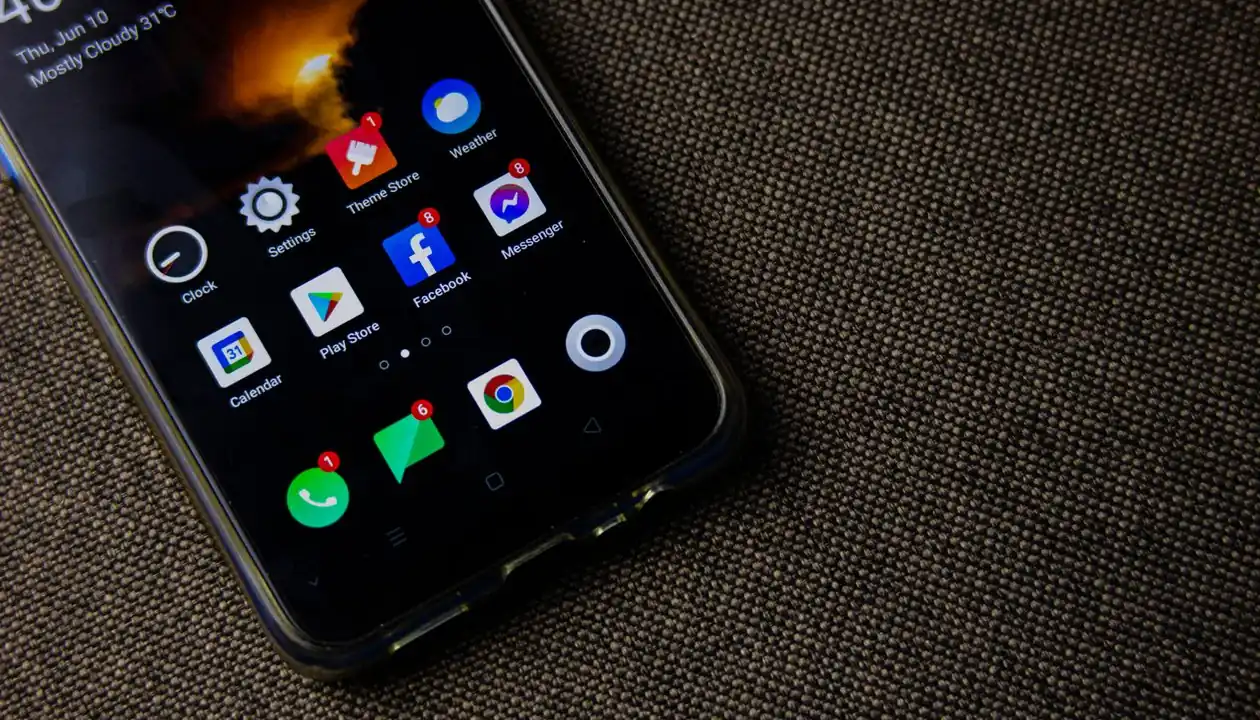
A major Android update can temporarily cause rapid battery drain, heat, and sluggish performance while the operating system rebuilds indexes and optimizes installed applications.
Give the phone a full charging cycle and 24–48 hours first. If the problem continues, use the checks below.
Why Battery Drain Appears After an Update
- App recompilation: Android Runtime optimizes installed apps for the new system.
- Stale cache: Previous-version files can conflict with updated services.
- Outdated apps: Legacy background services may loop or refuse to sleep.
- Relearning: Battery management needs fresh usage data after a major change.
Step 1: Finish Application Optimization
Keep the phone on a reliable charger and Wi-Fi overnight. Advanced users can trigger background optimization through ADB:
adb devices
adb shell cmd package bg-dexopt-job
Only enable USB debugging on a trusted computer, approve the correct device fingerprint, and disable debugging when finished.
Step 2: Clear Supported System Cache
- Power the phone off.
- Use the manufacturer’s documented recovery-button sequence.
- If the recovery menu provides Wipe cache partition, select it and then reboot.
This option is not available on every modern Android device. Do not select a factory reset or data-wipe option.
Step 3: Restrict Runaway Apps
- Open Settings > Battery > Battery usage.
- Review usage since the last full charge.
- Update any app with unusually high background activity.
- If the behavior continues, set that app’s battery mode to Restricted or uninstall it temporarily.
Step 4: Check Network and Battery Health
Weak 5G, Wi-Fi, or Bluetooth connections can keep radios awake. Reset network settings only if connectivity changed after the update, remembering that saved Wi-Fi and Bluetooth pairings may be removed.
If the phone remains hot while idle, shuts down unexpectedly, or has a swollen battery, stop charging it and seek qualified repair support.
Recovery Checklist
| Phase | Target | Expected result |
|---|---|---|
| App optimization | Runtime bytecode | Lower idle CPU use |
| Cache cleanup | Temporary system data | Fewer post-update conflicts |
| App restriction | Runaway services | Reduced background drain |
| Network review | Radio scanning | Improved standby time |
0 COMMENTS
Be the first person to share a thought.