Top 5 Free Video Editors for Low-End PCs Without Watermark (2026 Edition)
Discover the top 5 free video editors for low-end PCs without watermark, optimized for fast export speeds, low RAM usage, and smooth timeline playback.
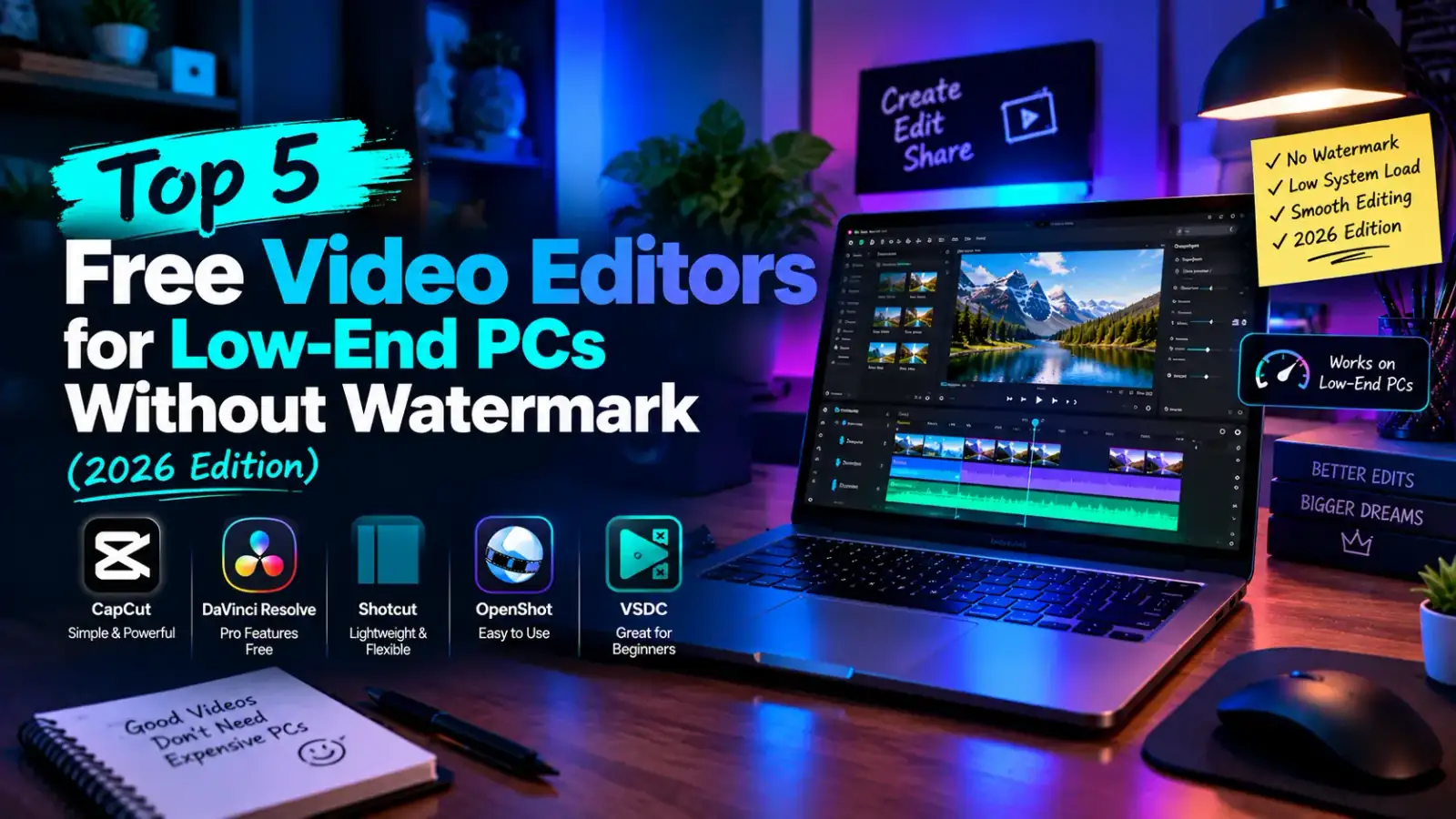
Top 5 Free Video Editors for Low-End PCs Without Watermark (2026 Edition)
Video editing has become an essential skill for content creators, students, and digital marketers. However, most professional video editing software suites—such as Adobe Premiere Pro or DaVinci Resolve—demand high-end hardware with dedicated graphics cards, multi-core processors, and at least 16GB of RAM.
For creators operating on budget laptops or older desktop systems equipped with integrated graphics and 4GB to 8GB of RAM, attempting to render timelines in heavy software leads to constant crashes, proxy rendering delays, and unbearable timeline lag. Worse yet, many "free" editors force massive branding watermarks over exported videos unless you upgrade to a paid tier.
In this comprehensive software guide, we will evaluate the top 5 best free video editors for low-end PCs that export clean, high-definition video without watermarks, minimal system overhead, and zero hidden subscription fees.
Hardware Evaluation Criteria for Low-End Video Editing
To determine whether a video editor runs smoothly on budget hardware, we evaluate key system resource metrics:
                  LOW-END HARDWARE RESOURCE ALLOCATION
                                    │
                                    ▼
       ┌─────────────────────────────────────────────────────────┐
       │     Target Hardware Baseline (4GB - 8GB RAM Systems)    │
       └────────────────────────────┬────────────────────────────┘
                                    │
           ┌────────────────────────┴────────────────────────┐
           ▼                                                 ▼
┌─────────────────────────────┐           ┌─────────────────────────────┐
│    CPU Thread Efficiency    │           │    RAM / VRAM Footprint     │
│ (Smooth playback software)  │           │ (Low background footprint)  │
└─────────────────────────────┘           └─────────────────────────────┘
                                    │
                                    ▼
       ┌─────────────────────────────────────────────────────────┐
       │   RESULT: Fast Export Speeds & Zero Watermark Output    │
       └─────────────────────────────────────────────────────────┘
Essential Features Needed for Budget Editing:
○ No Export Watermarks: Full access to high-definition (1080p / 4K) exports without forced branding logos.
○ Low Idle Memory Usage: Operating efficiently within 2GB to 4GB of active system RAM.
○ Hardware Acceleration Support: Utilizing integrated Intel HD Graphics or AMD Radeon Vega chips for timeline rendering.
○ Multi-Track Timeline: Supporting overlay graphics, text layers, background music, and video transitions natively.
1. CapCut for Desktop (Best Overall for Social Content Creators)
Originally designed for mobile devices, CapCut Desktop has evolved into one of the most optimized, lightweight video editing suites available for Windows. It provides professional-tier features, AI-powered auto-captions, keyframe animation, and speed ramping without consuming excessive CPU resources.
       CAPCUT DESKTOP WORKFLOW PROFILE
Performance Index: 9.5 / 10 ──► Smooth 1080p Playback on 4GB RAM Systems
Key Advantages for Low-End PCs:
○ Proxy Rendering: Automatically creates low-resolution working copies of high-bitrate media clips to prevent timeline stuttering.
○ Smart AI Tools: Built-in auto-captions, background remover, and text-to-speech tools process quickly without heavy GPU dependency.
○ Zero Export Watermarks: Exports up to 4K resolution at 60 FPS without applying watermarks (requires a free account login).
System Requirements:
○ OS: Windows 8 / 10 / 11 (64-bit)
○ RAM: 4GB minimum (8GB recommended)
○ GPU: Integrated Intel HD Graphics 4000 or higher
2. Shotcut (Best Open-Source Editor for Low RAM Systems)
Shotcut is a completely free, open-source, cross-platform video editor built on the FFmpeg framework. Because it does not run bloatware background telemetry services, Shotcut consumes remarkably low memory, making it an ideal choice for older dual-core processors.
Key Advantages for Low-End PCs:
○ Native Timeline Editing: Does not require media import formatting; simply drag and drop video files directly into the project timeline.
○ Low Resource Overhead: Consumes less than 1.5GB of RAM during active 1080p multi-track editing sessions.
○ Wide Codec Support: Supports hundreds of audio and video formats natively via the FFmpeg engine.
System Requirements:
○ OS: Windows 10 / 11, Linux, macOS
○ RAM: 4GB minimum
○ GPU: OpenGL 2.0 compatible graphics processor
3. Kdenlive (Best Advanced Timeline Control)
Developed by the KDE open-source community, Kdenlive provides a layout similar to Adobe Premiere Pro, making it a powerful choice for editors who want granular control over audio routing, color correction, and video effects without purchasing expensive software licenses.
                     KDENLIVE ARCHITECTURE
FFmpeg Core ──► MLT Video Framework ──► Low Memory Overhead ──► Zero Watermarks
Key Advantages for Low-End PCs:
○ Configurable Interface: Customize toolbars and panel layouts to maximize screen real estate on smaller laptop displays.
○ Automatic Audio Syncing: Sync multi-camera footage or external microphone tracks automatically via waveform analysis.
○ Automatic Timeline Backup: Saves incremental project files silently without causing background processing lag.
System Requirements:
○ OS: Windows 10 / 11 (64-bit), Linux
○ RAM: 4GB minimum
○ Storage: 500MB available disk space for program files
4. VSDC Free Video Editor (Best for Non-Linear Editing)
VSDC Free Video Editor is designed specifically to run smoothly on older Windows machines, even those equipped with aging single-core or low-power dual-core CPUs. Unlike traditional linear editors, VSDC uses a non-linear editing system, allowing video clips and graphics to be placed in any position on the timeline seamlessly.
Key Advantages for Low-End PCs:
○ Ultra-Low Hardware Footprint: Runs reliably on systems with as little as 2GB of RAM and older integrated graphics chips.
○ Built-in Screen Recorder & Voiceover: Includes built-in tools for desktop screen capturing and voice commentary recording.
○ Chroma Key (Green Screen): Advanced color masking for removing green backgrounds efficiently on budget hardware.
System Requirements:
○ OS: Windows XP / Vista / 7 / 8 / 10 / 11
○ RAM: 2GB minimum
○ GPU: Intel HD Graphics or basic DirectX 9.0c GPU
5. OpenShot (Best for Beginners & Basic Trimming)
If you need a simple, intuitive video editor for cutting clips, adding background music, inserting basic transition effects, and exporting short videos, OpenShot is an excellent lightweight option.
Key Advantages for Low-End PCs:
○ Minimal Learning Curve: Drag-and-drop user interface allows beginners to complete basic video edits within minutes.
○ Unlimited Layers: Add as many video, watermark, text, or audio tracks as required without arbitrary software limits.
○ Title Template Engine: Integrated 3D animated titles powered by Blender integration.
System Requirements:
○ OS: Windows 7 / 8 / 10 / 11 (64-bit)
○ RAM: 4GB minimum
○ GPU: Basic DirectX 11 compatible graphics chip
Side-by-Side Feature Comparison Table
| Software Name | License Type | Minimum RAM Needed | 4K Export Support | Ideal Workload |
| CapCut Desktop | Free (Account Login) | 4 GB | Yes | YouTube Shorts, TikTok, Vlogs |
| Shotcut | Open-Source / Free | 4 GB | Yes | Educational Content, Tutorials |
| Kdenlive | Open-Source / Free | 4 GB | Yes | Multi-cam, Advanced Editing |
| VSDC Free Editor | Freeware | 2 GB | Yes | Low-spec Laptops, Gameplay Clips |
| OpenShot | Open-Source / Free | 4 GB | Yes | Quick Trimming, Basic Slideshows |
4 Crucial Tweaks to Make Video Editing Faster on Low-End PCs
Regardless of which software you select, applying these four optimization techniques will dramatically improve timeline performance and prevent rendering crashes on low-spec systems:
1. Lower Playback Preview Resolution: Set your video editor's preview window playback quality to 1/2 or 1/4 resolution. This reduces live CPU workload while keeping full resolution intact during export.
2. Use Proxy Files: Always enable proxy creation in CapCut, Kdenlive, or Shotcut. Editing 720p proxy files instead of raw 1080p/4K files eliminates timeline freezing completely.
3. Close Background Applications: Open Task Manager (
Ctrl + Shift + Esc) and terminate background browsers, cloud updates, and messaging apps before launching your video editor.4. Store Project Files on an SSD: Edit media files stored on a Solid-State Drive (SSD) rather than an old mechanical Hard Disk Drive (HDD) to eliminate file reading bottlenecks.
Summary & Final Recommendation
You do not need an expensive flagship gaming rig or a high-end laptop to edit videos without watermarks.
○ If you want a modern interface with AI captions and social media templates, download CapCut Desktop.
○ If you prefer open-source reliability with low RAM consumption, choose Shotcut or Kdenlive.
○ If you are running an older system with 2GB of RAM, VSDC Free Video Editor is your best option.
Choose the editor that best fits your hardware specifications today, apply proxy rendering, and start creating high-quality content without watermarks or performance lag!
0 COMMENTS
Be the first person to share a thought.