How to Fix CPU Thermal Throttling and Overheating
Diagnose CPU heat limits, restore cooler performance, tune voltage carefully, and improve airflow without sacrificing stability.
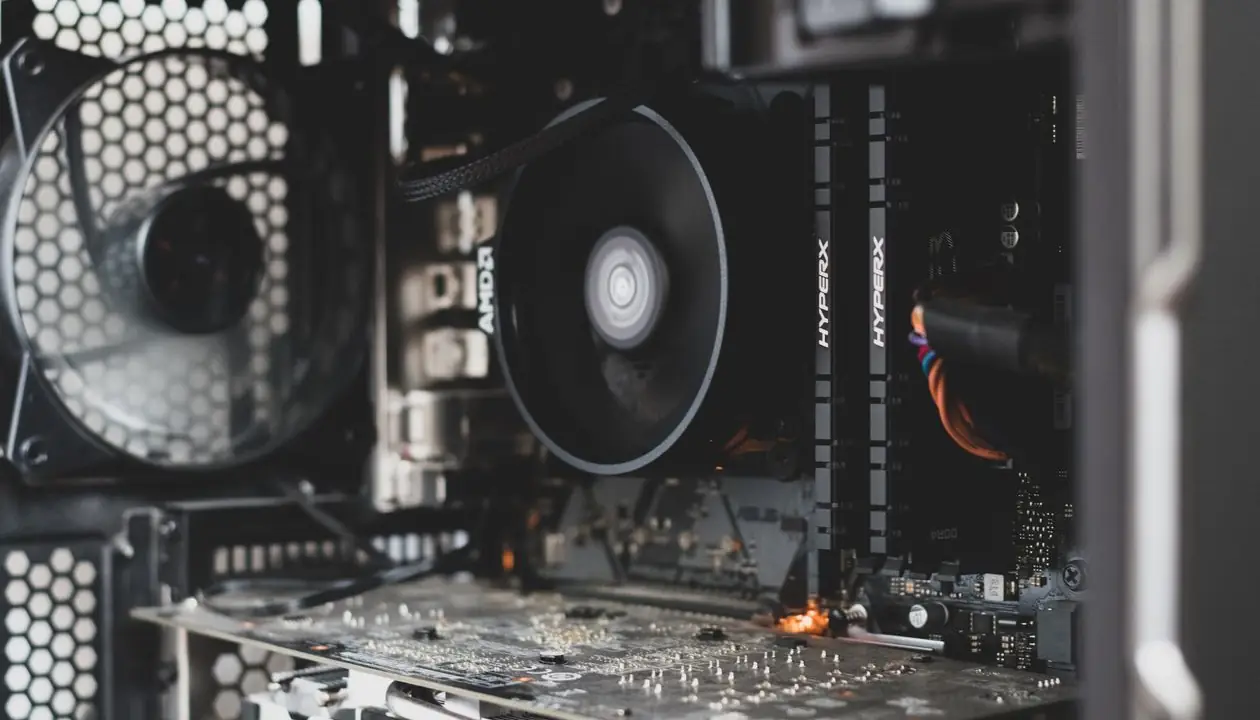
When a processor approaches its thermal limit—often around 95°C to 100°C—it protects itself by reducing voltage and clock speed. The result can be frame drops, slow renders, and inconsistent performance.
Verify That the CPU Is Throttling
- Open a trusted sensor tool such as HWiNFO64 in Sensors-only mode.
- Locate CPU Package temperature and thermal-throttling flags.
- Run a controlled workload and watch whether a flag changes to Yes.
- Stop the workload if temperature exceeds the processor manufacturer’s documented limit.
Step 1: Clean Dust and Restore Thermal Contact
- Shut down and disconnect power.
- Clean filters, fans, and heatsink fins.
- If you are comfortable servicing the cooler, remove old paste with high-purity isopropyl alcohol.
- Apply a small amount of fresh thermal compound and tighten the mount evenly in a diagonal pattern.
Laptop disassembly and liquid-cooler service may require a qualified technician.
Step 2: Undervolt Carefully
Lower voltage can reduce heat, but unsupported settings can crash the system or corrupt active work. Record defaults and change only small increments.
Intel
Where firmware permits, begin with a modest negative offset such as -0.050V, stress-test, and monitor error logs.
AMD Ryzen
Use Precision Boost Overdrive’s Curve Optimizer, begin around -10, and test each core for stability before moving further.
Step 3: Improve Airflow and Fan Curves
- Use filtered front or bottom intake and unobstructed rear or top exhaust.
- Keep cables away from primary airflow paths.
- Raise the PWM curve progressively and reach full fan speed near the upper safe temperature range.
- Check pump speed and radiator placement on liquid-cooled systems.
Thermal Diagnostic Matrix
| Temperature | State | Action |
|---|---|---|
| Below 70°C | Normal load | No action |
| 75–85°C | Heavy workload | Monitor consistency |
| 85–94°C | Near thermal boundary | Check cooling and voltage |
| 95°C+ | Possible throttling | Stop, clean, and inspect mounting |
0 COMMENTS
Be the first person to share a thought.