SSD vs HDD for Gaming & Daily Use: Which Storage Drive Should You Buy?
Discover the key differences between SSDs and HDDs for gaming, boot speeds, and daily productivity, helping you choose the best storage drive.
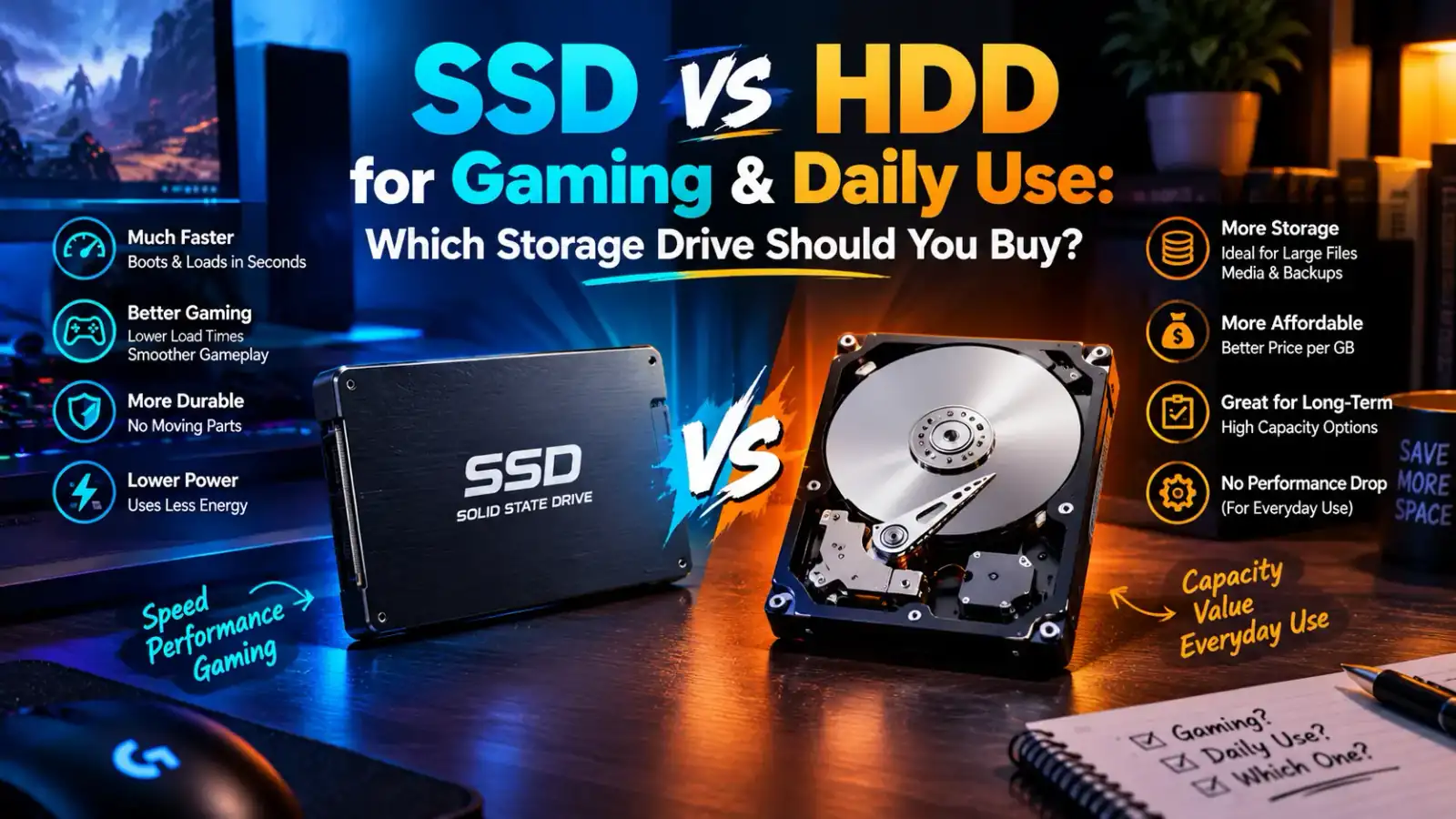
SSD vs HDD for Gaming & Daily Use: Which Storage Drive Should You Buy?
When upgrading a PC or buying a new laptop, one hardware specification directly determines how fast your operating system feels: your storage drive. For decades, traditional Hard Disk Drives (HDDs) served as the primary storage standard for consumer computers. However, Solid-State Drives (SSDs) have rapidly taken over as the new industry benchmark.
Whether you are building a budget gaming desktop, editing high-resolution video clips, or simply trying to make an old laptop boot faster, choosing between an SSD and an HDD can feel overwhelming—especially with modern NVMe M.2 options competing against older SATA technology.
In this hardware analysis guide, we will break down the fundamental mechanical differences, compare real-world gaming load times, analyze daily productivity gains, and help you decide which storage setup provides the best performance-to-price ratio.
Mechanical Architecture: How HDDs and SSDs Work
To understand why SSDs perform significantly faster than traditional hard drives, you must look at how each device reads, writes, and stores digital data.
                    STORAGE DRIVE ARCHITECTURE COMPARISON
                                    │
                                    ▼
       ┌─────────────────────────────────────────────────────────┐
       │             STORAGE DRIVE MECHANISM SPECTRUM            │
       └────────────────────────────┬────────────────────────────┘
                                    │
           ┌────────────────────────┴────────────────────────┐
           ▼                                                 ▼
┌─────────────────────────────┐           ┌─────────────────────────────┐
│  Mechanical HDD (SATA III)  │           │   Solid-State Drive (SSD)   │
│ - Spinning Magnetic Platters│           │ - Flash Memory IC Chips     │
│ - Mechanical Read/Write Head│           │ - Zero Moving Controller    │
│ - High Physical Latency     │           │ - Near-Instant Latency      │
└─────────────────────────────┘           └─────────────────────────────┘
                                    │
                                    ▼
       ┌─────────────────────────────────────────────────────────┐
       │   RESULT: SSDs Deliver Up to 35x Faster Read Speeds     │
       └────────────────└────────────────────────────────────────┘
1. Hard Disk Drives (HDDs)
Hard Disk Drives store data magnetically on rapidly spinning mechanical glass or metal platters (typically rotating at 5400 RPM or 7200 RPM). A tiny mechanical read/write head physically moves across the surface of the platter to find requested files.
Because the head must physically move across disk sectors, HDDs suffer from high random latency and fragmented file read delays.
2. Solid-State Drives (SSDs)
Solid-State Drives store data inside non-volatile NAND flash memory chips. Because SSDs have zero moving mechanical parts, there is no physical arm waiting to locate data sectors.
The onboard SSD controller reads and writes electrical pulses simultaneously across memory channels, delivering instantaneous access times regardless of file fragmentation.
Performance Benchmark Metrics: SSD vs HDD
Comparing read/write speeds, latency figures, and boot times highlights the massive performance advantage that SSD technology holds over mechanical drives:
| Performance Metric | Traditional HDD (7200 RPM) | SATA III 2.5" SSD | NVMe PCIe 4.0 M.2 SSD |
| Sequential Read Speed | 80 MB/s – 160 MB/s | 500 MB/s – 560 MB/s | 3,500 MB/s – 7,500 MB/s |
| Sequential Write Speed | 80 MB/s – 140 MB/s | 450 MB/s – 530 MB/s | 3,000 MB/s – 6,500 MB/s |
| Random Access Latency | 10ms – 20ms (Slow) | < 0.1ms (Instant) | < 0.02ms (Ultra-Fast) |
| Windows Boot Time | 45 – 90 Seconds | 10 – 15 Seconds | 5 – 8 Seconds |
| Durability & Shock Drop | Fragile (Prone to damage) | High (Vibration proof) | Extremely High (Solid-state) |
Impact on Gaming: FPS vs Loading Speeds
A common myth among computer builders is that buying an expensive SSD will significantly boost in-game frame rates (FPS). While an SSD does not directly replace the graphics rendering workload of a GPU or CPU, it impacts modern game engine performance in three major ways:
                          GAMING LOAD TIME COMPARISON
GAME TITLE                 HDD TIME              SSD TIME
──────────────────────────────────────────────────────────────────
Cyberpunk 2077             62 Seconds    ████    14 Seconds
GTA V / Online             85 Seconds    █████   22 Seconds
Starfield / Open World     55 Seconds    ███     11 Seconds
1. Drastic Reduction in Level Loading Screens
In open-world titles like GTA V, Cyberpunk 2077, or Red Dead Redemption 2, moving from a 7200 RPM hard drive to an NVMe SSD slashes load times by 60% to 80%. Instead of waiting over a minute to enter a game session, games launch within seconds.
2. Elimination of Texture Pop-In and Micro-Stutters
Modern AAA games stream high-resolution 4K textures dynamically as your character moves through game worlds. On an HDD, slow mechanical read speeds cause texture pop-in (blurry textures loading late) and micro-stutters when the engine starves for data.
SSDs stream texture assets instantly into system VRAM, maintaining smooth gameplay continuity.
3. DirectStorage Technology Support
Next-generation game engines utilize Microsoft DirectStorage APIs. DirectStorage allows the graphics card (GPU) to decompress game assets directly from an NVMe SSD without bottlenecking the main CPU threads. Modern games are already starting to list SSDs as a mandatory system requirement.
Daily Usability & Multitasking Gains
While gaming benefits are substantial, the difference an SSD makes in daily computing productivity is even more transformative:
○ Instant Windows Booting: Windows 10 and 11 execute hundreds of background startup services. An SSD processes these initialization threads in under 10 seconds, leaving your system responsive the moment the desktop loads.
○ Seamless Web Browsing: Web browsers like Google Chrome rely heavily on local disk caches. Opening dozens of browser tabs while streaming media executes instantly on SSD storage without freezing.
○ Fast File Transfers: Copying large media archives, 4K video files, or zip folders takes minutes on an HDD, but completes in seconds on an NVMe M.2 drive.
Lifespan, Reliability, and Noise Output
Mechanical Noise and Power Draw
Because HDDs contain spinning spindles and physical actuator arms, they generate audible clicking and humming noises during heavy read/write tasks. Furthermore, motor friction uses more wattage and generates heat.
SSDs operate in complete silence, generate minimal thermal output under standard workloads, and use less battery power in laptops.
Drive Lifespan and TBW (Terabytes Written)
A common concern with SSDs is their finite cell rewrite limit, measured in TBW (Terabytes Written). Modern consumer SSDs (such as 500GB or 1TB drives) typically feature TBW ratings between 300 to 600 TBW.
To exceed this lifespan over 5 years, a user would need to write over 150GB of raw data to the drive every single day. For standard users, gamers, and office workers, modern SSDs easily last 5 to 10 years before approaching endurance boundaries.
The Ultimate Storage Setup: Hybrid Dual-Drive Strategy
If you are operating on a tight budget where buying a massive 2TB or 4TB SSD is financially impractical, the most cost-effective hardware approach is a Hybrid Dual-Drive System Setup:
                       HYBRID STORAGE STRATEGY
                                  │
         ┌────────────────────────┴────────────────────────┐
         ▼                                                 ▼
┌─────────────────────────────┐           ┌─────────────────────────────┐
│ 256GB / 500GB NVMe M.2 SSD  │           │   1TB / 2TB Mechanical HDD  │
│ (Primary OS & Core Games)   │           │ (Secondary Mass Storage)    │
│ - Windows Operating System  │           │ - Bulk Media & Downloads    │
│ - Daily Apps & Core Games   │           │ - File Backups & Archives   │
└─────────────────────────────┘           └─────────────────────────────┘
1. Primary OS Drive (SSD): Install a fast 250GB or 500GB NVMe SSD as your primary
C:drive dedicated strictly to the Windows OS, web browsers, essential applications, and your 2 most-played games.2. Secondary Data Drive (HDD): Pair it with an affordable 1TB or 2TB mechanical HDD for mass storage of bulk downloads, movies, document backups, and older media files where load speeds do not matter.
Summary & Final Verdict
When choosing storage hardware for a desktop PC or laptop today:
○ Get a Primary SSD: An SSD is no longer a luxury upgrade—it is a baseline requirement for modern Windows performance. Installing Windows on a mechanical hard drive in 2026 results in sluggish system delays.
○ Use HDDs for Mass Archiving: Mechanical hard drives remain a cost-effective option solely for low-cost, bulk data backups, surveillance recording, and offline media storage where speed is not critical.
Investing in even a budget 500GB SATA or NVMe SSD is the single most effective hardware upgrade you can make to transform your computer's daily responsiveness!
0 COMMENTS
Be the first person to share a thought.